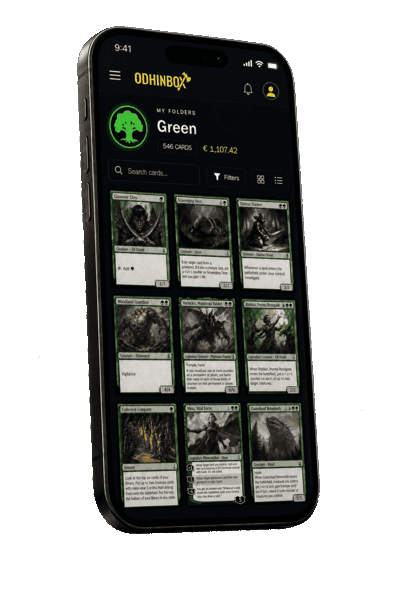
Create your account
Register for free with username, name, email, and password. Your account is ready to use folders, lists, and decks immediately — no extra setup.
Open Sign up
Click Sign up in the top bar or go to /sign-up. Fill in username, name, surname, email, and password.
Meet the password rules
Username must be 5–30 alphanumeric characters and available. Password needs upper and lower case, a number, a symbol, and at least 10 characters. The strength bar must turn green before Sign up is enabled.
Land on the Dashboard
Submit the form. You are taken to /app (Dashboard). Next time, use Sign in with the same username or email.
Dashboard
Overview of your collection totals, plan limits per TCG, and upgrade options.
Before you start
Open Dashboard
Sign in. In the sidebar, under My collection, click Dashboard (grid icon).
Read the summary cards
The top row shows total cards and how many folders, lists, and decks you use. Scroll to Plan usage for per-TCG limits across every game you play.
Upgrade when needed
If you hit a limit or want premium tools, use Upgrade to Premium on the page or open Plans from the sidebar/footer.
Search cards
Public card database covering every supported TCG. No account required.
Before you start
Pick a game
In the sidebar, click Choose your game and pick any supported TCG. The top search bar appears once a game is selected. You can also open Browse cards under a specific game.
Search or filter
Type at least two characters in Search, or open the filter icon for set, color, rarity, type, and more.
Open a card
Click a card image to open its detail page with prices, printings, and add actions when signed in.
Card scanner
Premium feature on mobile web: photograph a card to identify it and fill the search field (OCR).
Before you start
Open search on your phone
On mobile, click Choose your game in the sidebar and pick a TCG. Open Browse cards for that game — the camera icon sits in the search toolbar.
Start the scanner
Tap the camera icon. Premium subscribers open the scanner; others are directed to Plans.
Capture and confirm
Allow camera access, photograph the card, and confirm. Odhinbox fills the search with the card name and shows an estimated condition message before you add it.
Add from card detail
Send a card to a folder, list, or deck from its detail page.
Before you start
Open the card
From search, click a card to open /tcg//card/…
Use the add icons
When signed in, use the folder, list, or deck icon on the detail page toolbar.
Confirm destination
Choose the container, set quantity and condition if asked, and confirm. The card is saved there.
Default add settings
Pre-fill folder, list, condition, and purchase fields when adding cards.
Before you start
Profile → Settings
Click your avatar → Profile → Settings tab (not Personal information).
Default folders and lists
Under Default Folders and Default Lists, pick a default container for each TCG.
Default game
Under Default game, choose the TCG Odhinbox should focus on when you sign in. This updates the sidebar game picker and home discovery filter on login — not on every page refresh.
Card and purchase defaults
Set default condition, language, foil, and purchase fields. Click Save at the bottom.
Create a folder
Folders track cards you own with condition, language, foil, and purchase data.
Before you start
My Folders → Add
Sidebar → My collection → My Folders. Click + in the toolbar.
Fill the form
Enter name and optional description, tags, and avatar. Select the TCG — it cannot be changed later.
Save
Click Save. You return to My Folders with the new folder in the list.
Add a card to a folder
Put a card you own into one of your folders.
Before you start
Open the folder
My Folders → click the folder row to open /app/my-folders//.
Find the card
Browse cards, search, and tap the folder icon on a result — or open the card detail and choose Add to folder.
Confirm details
Set quantity, condition, language, and purchase info. The card appears in the folder table.
Manage folder cards
Edit quantities, conditions, and notes in the folder table.
Before you start
Open a populated folder
Go to a folder that already has cards. The table lists every copy.
Edit or batch actions
Click a row to edit fields, or select multiple rows for batch delete/move. Use the search bar to filter.
Totals update
Saved changes update the card count and totals shown at the top.
Edit folder metadata
Rename a folder or change avatar, tags, and description.
Before you start
Open edit
My Folders → ⋮ on a row → Edit, or open /app/folders/edit/.
Update fields
Change name, description, tags, or avatar. TCG is read-only after creation.
Save or delete
Click Save to keep changes, or Delete to remove the folder and all cards inside.
Create a list
Lists group cards for wishlists, trades, or set tracking — separate from folder inventory.
Before you start
My Lists → Add
Sidebar → My Lists. Click + in the toolbar.
Fill the form
Name, description, TCG, optional tags and avatar. Click Save.
Open the list
The new list appears in My Lists. Open it to add cards.
Add a card to a list
Add card references to a list without duplicating folder inventory.
Before you start
Open the list
My Lists → open /app/my-lists//.
Add from search
Search for a card and use the list icon, or open card detail → Add to list.
See it in the table
The card shows in the list table. Lists do not store condition or purchase data like folders.
Generate a list
Premium: build a list from cards in your folders using filters and percentage quotas.
Before you start
Open generate list
Go to /app/lists/generate. Pick the TCG and source folders.
Set criteria
Configure color/rarity percentages (must total 100%), filters, and list size. Click Preview selection.
Approve and create
Review the preview, then Approve and create list. The list is saved under My Lists.
Share a list
Make a list visible in Community → Lists.
Before you start
Edit the list
My Lists → ⋮ → Edit, or /app/lists/edit/.
Enable Is Shared
Turn on the Is Shared toggle and click Save.
Check Community Lists
Open Community → Lists (/lists) to see your list when shared.
Create a deck
Decks hold curated builds with format, tags, and a featured card.
Before you start
My Decks → Add
Sidebar → My Decks. Click + in the toolbar.
Fill the form
Name, TCG, format (MTG), description, tags, featured card. Click Save.
Open the deck
The deck appears in My Decks at /app/my-decks//.
Add cards to a deck
Fill mainboard and sideboard from search or your collection.
Before you start
Open the deck
My Decks → open the deck detail page.
Add from search
Search and use the deck icon, or card detail → Add to deck. Choose mainboard or sideboard.
Review sections
Cards appear under Mainboard, Sideboard, or Tokens with quantities and color breakdown.
Deck builder
Premium: drag cards from folders and lists into a deck with validation.
Before you start
Start the builder
From a deck, open Deck builder (/app/decks/build//) or Start building.
Drag cards in
Pick source folders/lists on the left. Drag cards into mainboard or sideboard on the right.
Validate and save
Run format validation, adjust counts, and save the deck when complete.
Generate a deck
Premium: auto-build a deck from your folders using archetype and filter rules.
Before you start
Open generate deck
Go to /app/decks/generate. Select TCG, format, and folder sources.
Configure the build
Choose archetype/strategy and filters. Click Preview deck.
Approve and create
Review mainboard and sideboard, then Approve and create deck.
Share a deck
Publish a deck to Community → Decks.
Before you start
Edit the deck
My Decks → ⋮ → Edit, or /app/decks/edit/.
Enable Is Shared
Turn on Is Shared, add tags if useful, and Save.
Check Community Decks
Open Community → Decks (/decks) to browse shared decks including yours.
Profile & security
Update personal data, password, 2FA, and active sessions.
Before you start
Personal information
Avatar → Profile. On Personal information, edit name and email.
Password and 2FA
Open Change password or Two-Factor Authentication tabs and follow the prompts.
Sessions
On Sessions, review signed-in devices and revoke any you do not recognize.
Plans & subscription
Compare Free, Premium, and Elite limits and features.
Before you start
Open Plans
Sidebar/footer → Plans, or Profile → Subscription tab.
Compare columns
Each plan shows folder/list/deck limits, scanner, stats, backup, sharing, and ads.
Subscribe
Choose Premium or Elite and complete checkout. Your plan updates after payment.
Collection statistics
PremiumPremium: set completion, value tables, and charts per TCG.
Before you start
Open Collections
Sidebar → Collections (/app/collections). Free accounts see an upgrade prompt.
Switch TCG tab
Use the per-game tabs to switch between the stats for each TCG in your collection.
Read set and price data
Scroll set grids and price tables for owned cards and estimated value.
Backup & restore
PremiumPremium: export and import folders, lists, and decks as JSON.
Before you start
Open Backup
Sidebar → Backup (/app/backup). Free users are redirected to Plans.
Export
Tick folders, lists, and/or decks, then download the JSON files.
Import
Drop JSON files into the import area or browse to select them. Matching containers are restored.
Explore the home page
Discover trending decks, lists, tags, and cards across all TCGs — or focus on one game at a time.
Open the home page
Go to / (home). With no game selected, discovery shows content from all supported TCGs.
Focus on one game
In the sidebar, click Choose your game and pick a TCG. The home feed and top search bar filter to that game. Trading Commander decks appear when no game is selected or when Magic is selected.
Show all games again
Open the game picker and choose Show all games to clear the filter and return to the mixed home view.
Community decks
Browse public decks without signing in.
Open Decks
Sidebar → Community → Decks (/decks).
Filter
Search and filter by TCG, format, or tags.
View a deck
Click a deck for the full list, colors, likes, and views. Sign in to copy to My Decks.
Community lists
Browse public lists without signing in.
Open Lists
Sidebar → Community → Lists (/lists).
Filter
Search by name or filter by TCG and tags.
View a list
Click a list to see all cards. Sign in to copy to My Lists.